File Browser
The file browser is the heart of FinderGit. It presents your files in an expandable outline table, similar to Finder’s list view, but enriched with Git information.
Tree navigation
Click the disclosure triangle (▸) next to any directory to expand it and see its contents. The tree loads children lazily — only when you expand a folder.
Drill into a folder
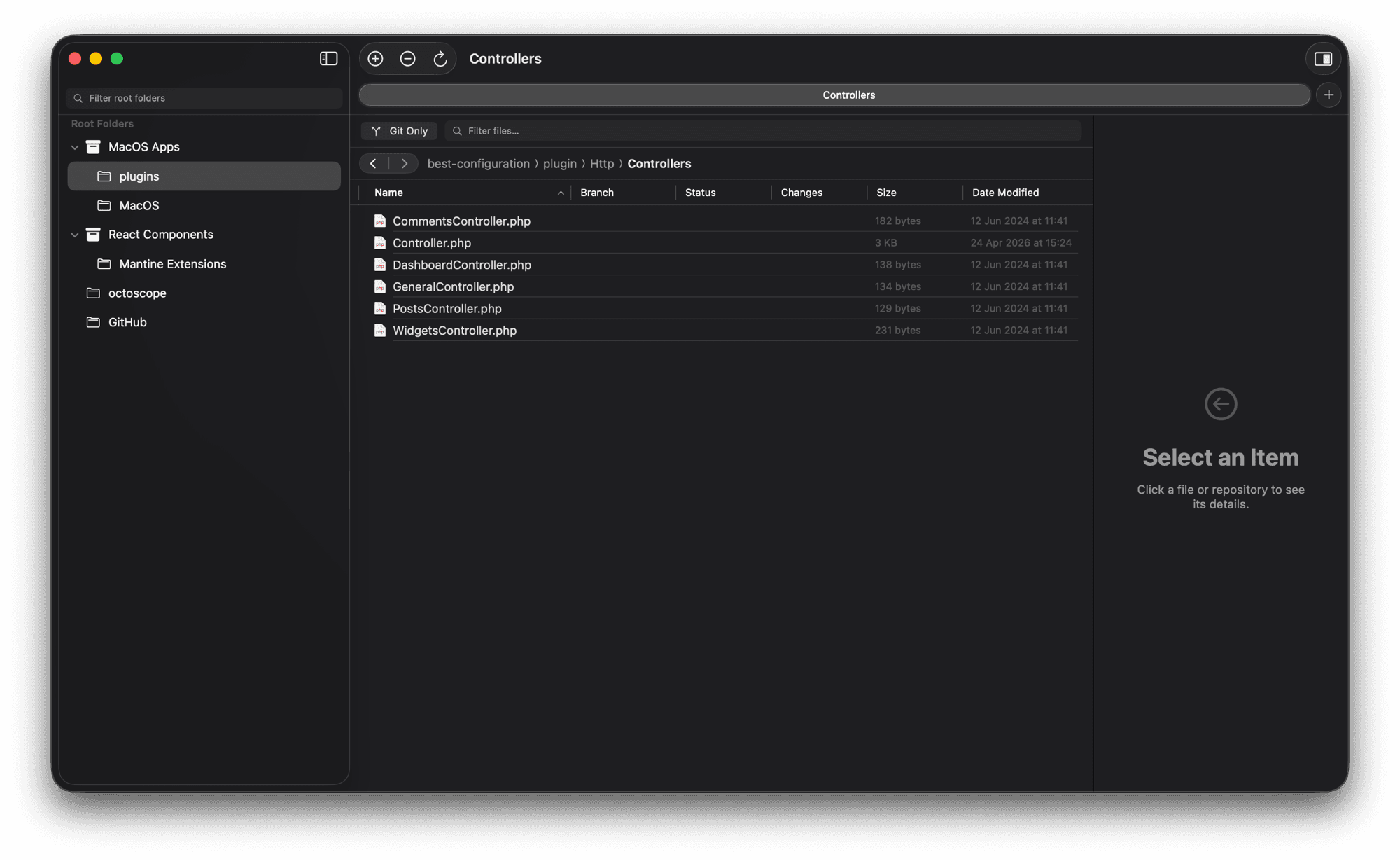
Double-click a directory (or press ↩) to re-root the tree on that folder — Finder-style. A back/forward capsule and a clickable breadcrumb appear above the table:
- ⌘ [ — back
- ⌘ ] — forward
- Click any segment in the breadcrumb to jump directly to that depth
Tabs
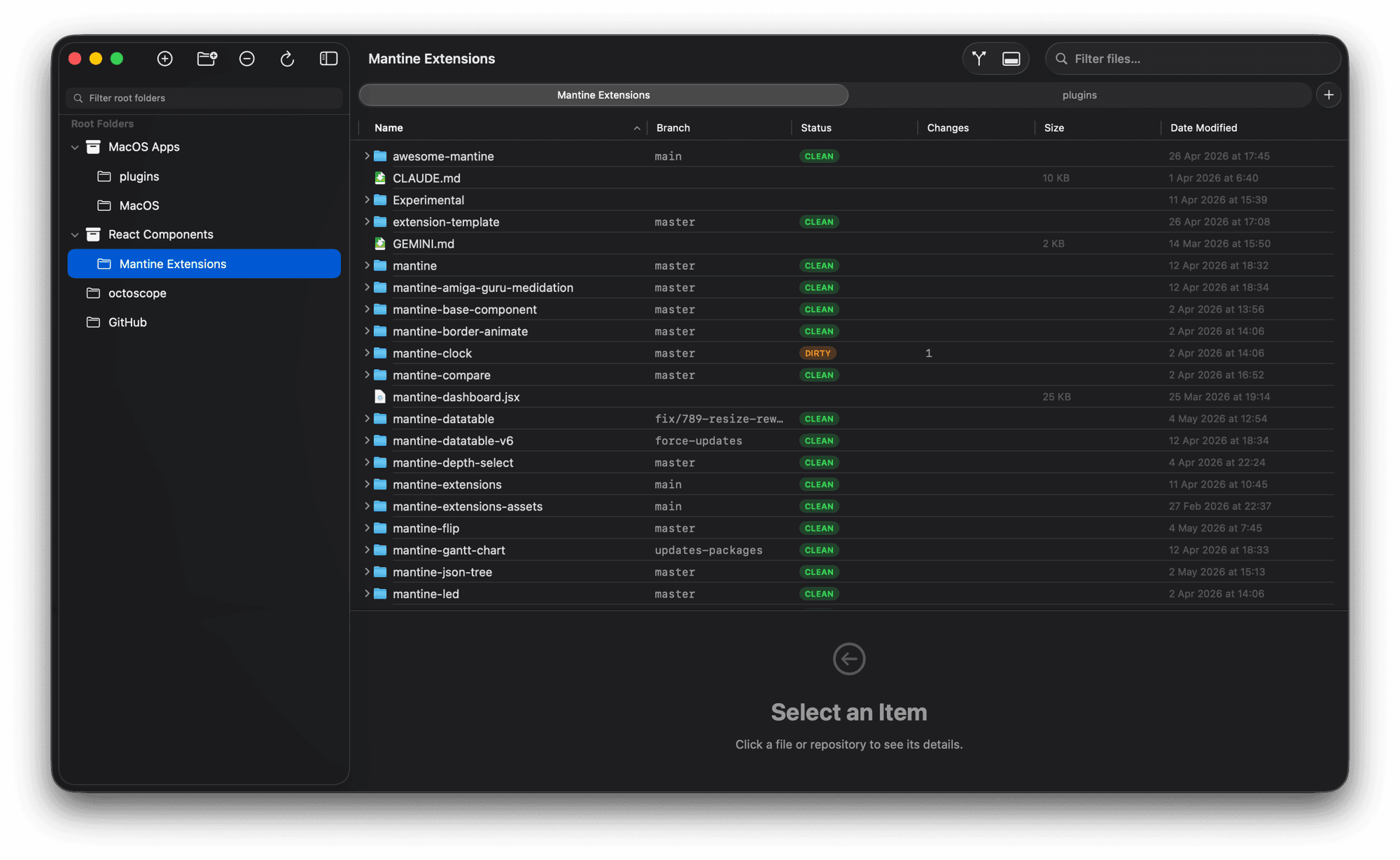
Open multiple root folders side-by-side with native macOS tabs (⌘ T or File → New Tab). Each tab has its own navigation, selection, and drill-down history. The window’s titlebar and tab labels automatically reflect the current folder you’re viewing.
Live updates
When files are created, deleted, or renamed externally — from the terminal, a build step, git clean, anything — the tree re-enumerates expanded directories within ~300ms. Your selection and scroll position are preserved across the refresh. You shouldn’t need ⌘ R to see what’s on disk.
Hidden files
By default, FinderGit hides dotfiles (files starting with .). You can show them in Settings → General → Show hidden files.
Excluded directories
FinderGit automatically skips heavy directories during scanning:
node_modules,.build,Pods,Carthage,DerivedData.Trash,Library,Applications,.cache,.npmvendor,bower_components
You can customize this list in Settings → General → Excluded Folders.
Git indicators
Repository badges
Repositories (directories containing .git/) show inline status. The badge reflects both the working-tree state and the local branch’s position relative to its upstream:
- CLEAN (green) — working tree matches HEAD and the branch is in sync with upstream (or has no upstream)
- DIRTY (orange) — uncommitted changes in the working tree (takes priority over any sync state)
- ↑N (blue) — N commits ahead of upstream (push to sync)
- ↓N (purple) — N commits behind upstream (pull to sync)
- ↑N ↓N (red) — diverged: commits on both sides (pull then push, or rebase)
Hover the badge for a tooltip with the exact meaning. Ahead/behind counts are only accurate after a git fetch has brought the latest remote refs — Settings → Git → Fetch on launch (on by default) runs one fetch at startup so the counts are correct from the first moment.
Sub-directory indicators
Directories inside a repository show an orange dot with a number if they contain modified files. This lets you trace dirty files without expanding every folder.
File status codes
Modified files inside a repository show their git status porcelain code (e.g., M. for modified-unstaged, A. for added-staged, ?? for untracked).
Sidebar
The sidebar on the left lists every root folder you’ve added — directories where FinderGit scans for Git repositories.
Adding and removing roots
- Drag a folder from Finder onto the sidebar to add it as a root
- + popup menu in the sidebar toolbar — choose Add Root Folder… to pick a directory from the macOS Open panel, or Add Group… to create a virtual container (see below)
- − button removes the currently selected root (its repos drop out of the file browser; the actual files on disk are untouched)
- ↻ button rescans every root for new or removed repositories
Filtering long lists
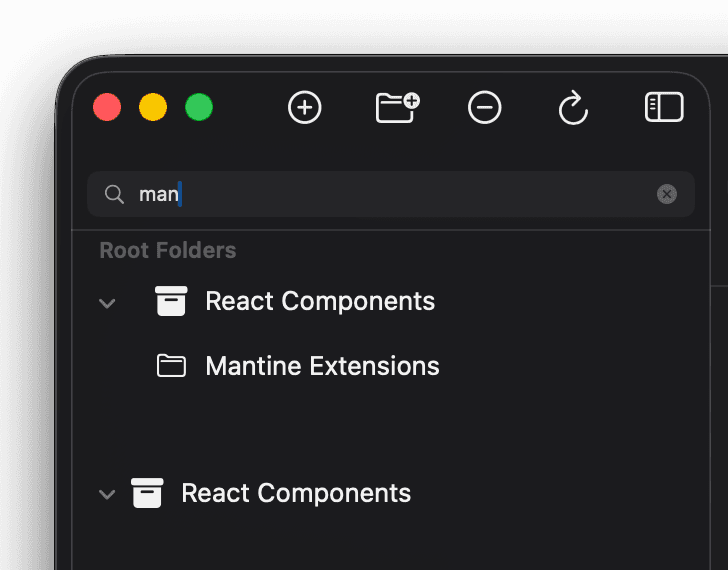
Type into the filter field at the top of the sidebar to narrow the visible roots. The filter matches both folder names and group names — typing the name of a group surfaces every root inside it.
Reordering and organising roots
- Drag any root to reorder it within the sidebar — position is persisted across launches
- Right-click → Move to Group to assign a root to a group, or drag the row directly onto a group header
- + → Add Group… (in the sidebar’s
+popup menu) opens a small dialog to create a virtual group — Tower-style containers that hold roots without changing anything on disk. Useful when you want to keep work, side projects, and dotfiles visually separated - Groups can be renamed or deleted from their own right-click menu; expanded/collapsed state is sticky like Finder
Sub-directory tree
Click a root to focus the file browser on its contents. Click the row again (or click empty space) to deselect and show every root’s contents merged into a single tree.
Sorting
Click any column header to sort the tree by that column. Supported columns:
- Name, Branch, Status, Changes, Size, Date Modified
Click the same header again to reverse the sort order.
Search and filter
A header strip pinned above the file browser hosts both controls:
- Filter files field — filter the tree by name. The filter applies across the entire tree with a 300ms debounce. ⌘ F focuses the field from anywhere in the window.
- Git Only toggle — hide every file and directory that isn’t (or isn’t inside) a Git repository.
Both controls are scoped to the file browser column and stay anchored above it as the window resizes.
Selection
Click a row to select it. Standard macOS selection gestures apply:
- ⇧ click — contiguous range
- ⌘ click — discontiguous add / remove
- ↑ / ↓ with ⇧ — extend the keyboard selection
The detail panel on the right follows the most recently added item in the selection.
Bulk actions
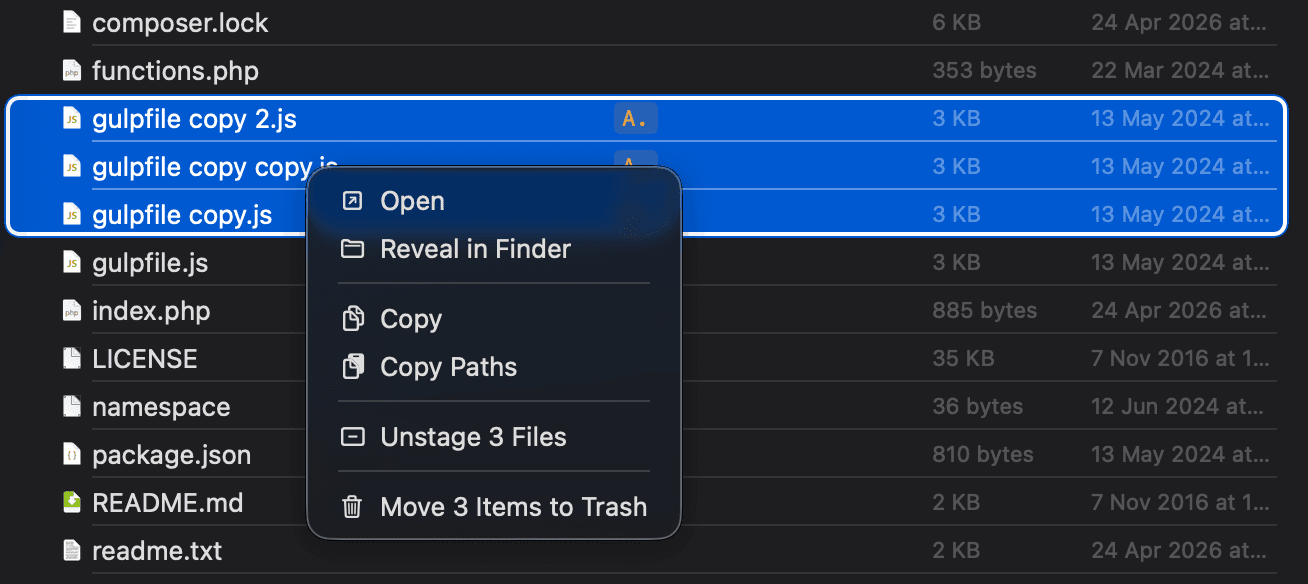
When you have multiple files selected, the context menu collapses to a shorter list that operates on the whole set: Open, Reveal in Finder, Copy, Copy Paths, and — when all selected files live in the same repo — Stage N / Unstage N. At the bottom, Move N Items to Trash handles delete.
Press ⌫ (Delete) to trash the whole selection in one go. ⌘ Z restores every file to its original path — if a path has been reclaimed in the meantime, the trashed copy is revealed in Finder so nothing silently disappears.
Drag files out
Grab the icon of any file or folder and drop it anywhere that accepts a file URL — Finder windows, chat apps, editors, mail composers, the Dock. The text portion of the row stays click-through for selection, so dragging is an explicit gesture.
Context menu
Right-click any item in the tree to get a context-sensitive menu with inline SF Symbol icons. On a single item the menu adapts to what you right-clicked:
- Repository folder — Open in Finder / Terminal, Add to Root Folders, Quick Look, Get Info, Duplicate, Copy / Copy Path, Fetch / Pull / Push / Stage All, Move to Trash
- File inside a repo — Open, Quick Look, Reveal in Finder, Get Info, Duplicate, Copy / Copy Path, Stage / Unstage (when applicable), Move to Trash
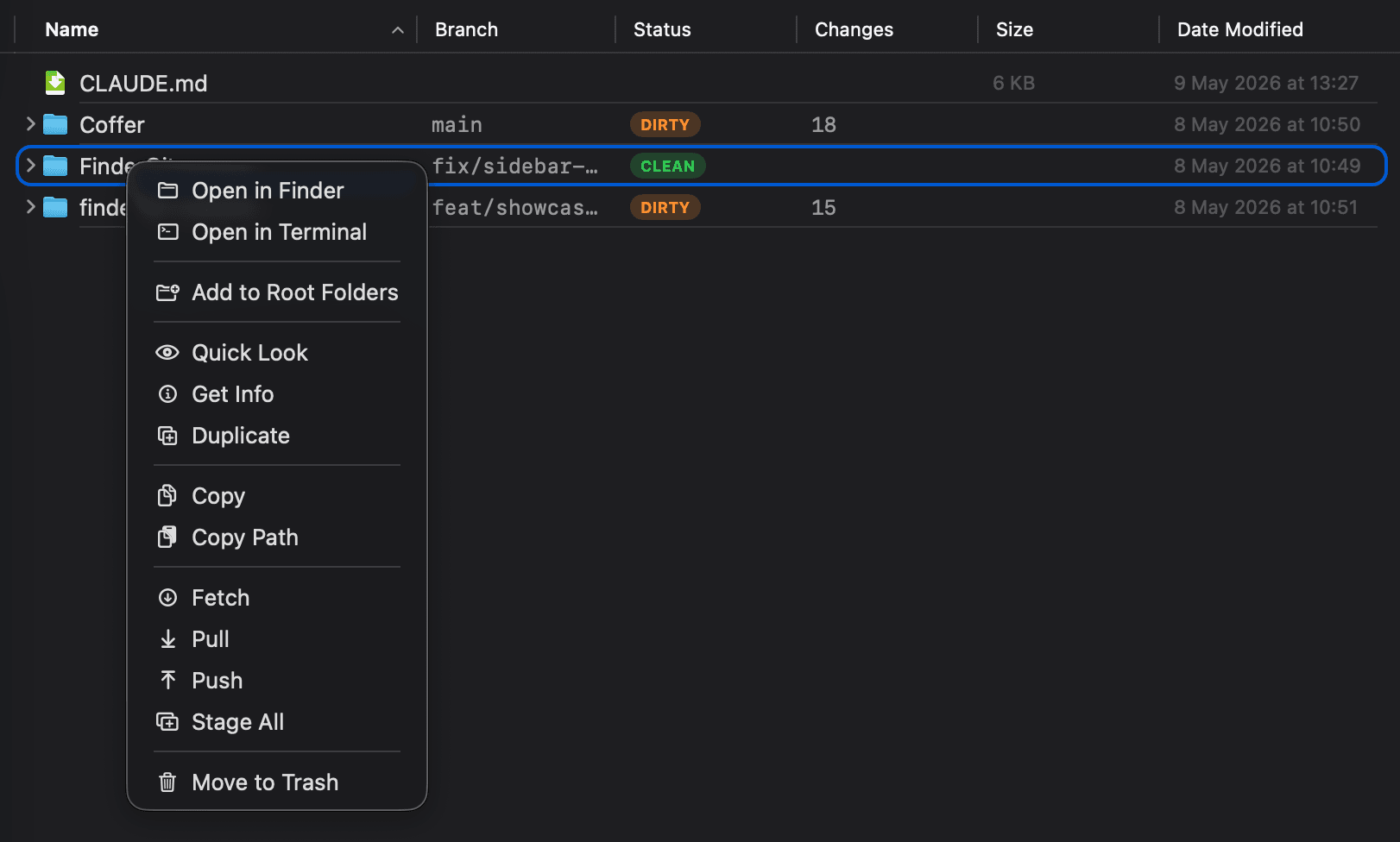
Finder-parity actions:
- Get Info — opens the system Get Info panel (same window you get from Finder’s ⌘ I)
- Duplicate — creates a sibling
… copy/… copy 2next to the original, matching Finder’s naming - Copy — copies the actual file reference to the clipboard, paste-able into another Finder window / Mail / Messages / anywhere
Quick Look
Press Space on any selected file to preview it without leaving the app.
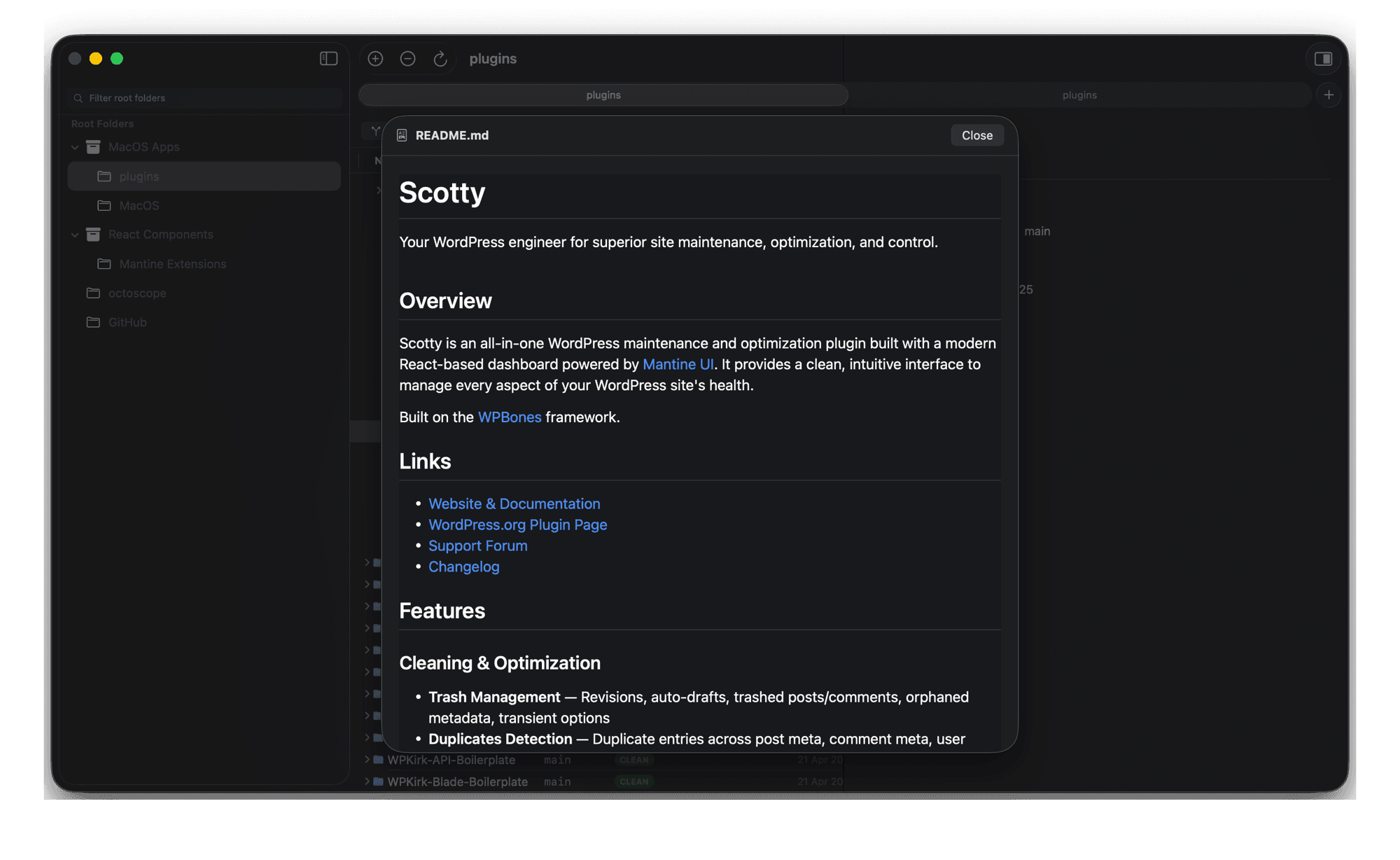
.mdand.markdownfiles open in a native renderer (GitHub-style theme via MarkdownUI). Close with Space or Escape- All other file types fall back to the system Quick Look (
qlmanage) — same behaviour as in Finder