Git Actions
FinderGit lets you perform common Git operations directly from the app, without opening a terminal.
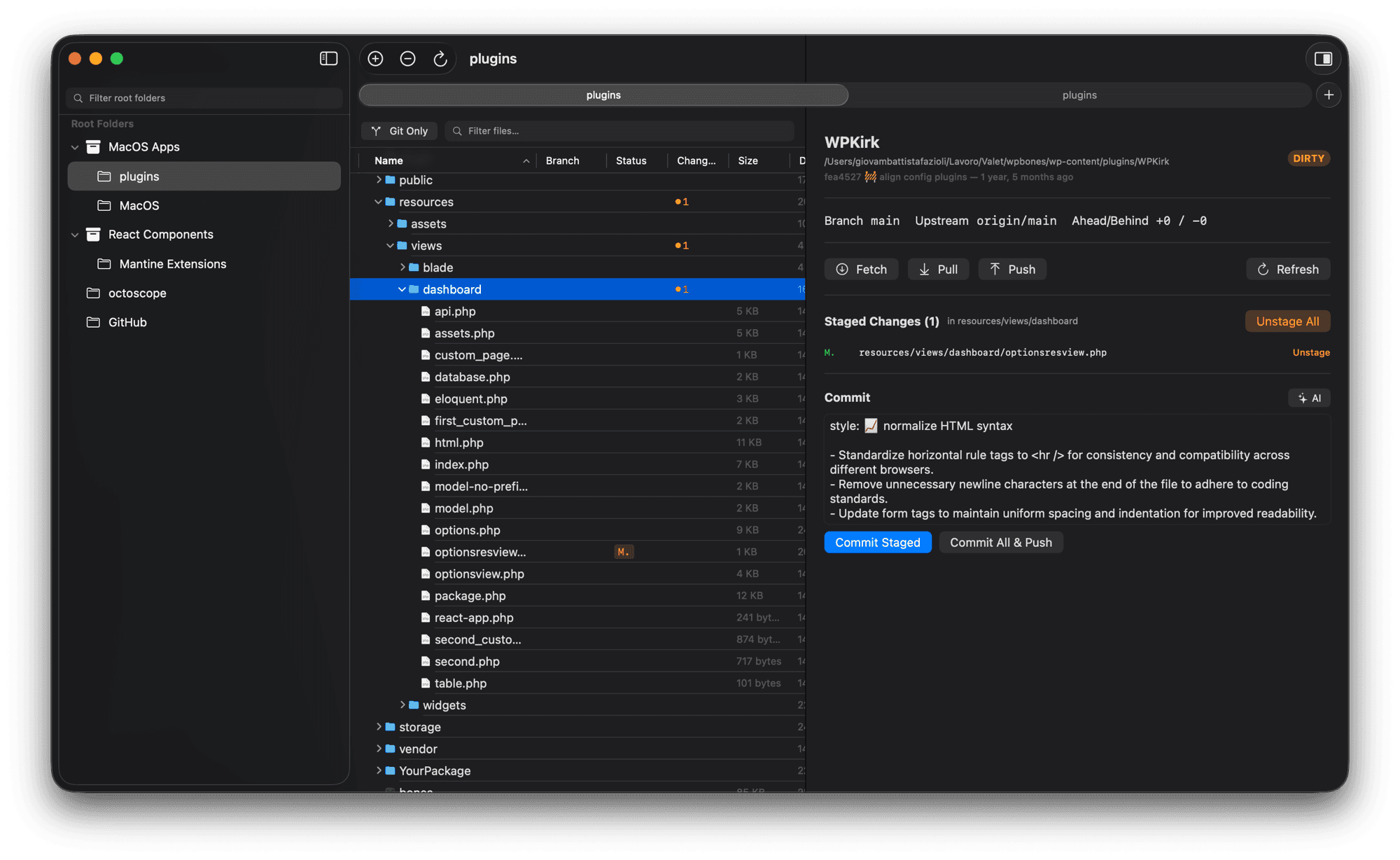
Available actions
From the Detail Panel
When you select a repository (or any item inside one), the detail panel shows:
- Fetch — fetches from all remotes (
git fetch --all) - Pull — pulls from the upstream (
git pull) - Push — pushes to the upstream. If no upstream is configured, automatically sets it with
--set-upstream origin <branch> - Refresh — re-reads the repository status (local only, no network)
Button feedback
Every action button adapts its appearance to show you what’s happening:
- Idle — default icon and label
- In progress — a spinner replaces the icon, the label becomes “Fetching…” / “Pulling…” / “Pushing…” / “Refreshing…”, and the other action buttons disable so you can’t fire a second command while one is in flight
- Success — a green checkmark briefly flashes on the button that just finished (~1.5s), then fades back to the idle icon
- Failure — a red x stays on the button; hover the button to see the underlying error message
A brief confirmation banner (green) or error banner (red) also appears just under the action bar for a few seconds.
Responsive compact mode
When the detail panel is narrower than about 500px (common on 13” laptops or split-screen windows), the layout automatically adapts:
- Action buttons collapse to icon-only — the title still shows as a tooltip on hover
- Section spacing and typography tighten
- Long strings (repo path, last-commit subject) truncate more aggressively
- Branch/Upstream/Ahead-Behind info switches from a single row to a compact two-column stack
No setting to manage — widen the panel and the full layout returns automatically.
Staging and unstaging
The changes list is grouped into two clearly labelled sections:
- Staged Changes (N) — files already in the index, ready to be committed
- Unstaged Changes (N) — files modified or untracked in the working tree, not yet staged (not in the index)
Each file in either section has a Stage or Unstage button:
- Stage — runs
git add <file> - Unstage — runs
git restore --staged <file> - Stage All ↔ Unstage All — the header button toggles based on state: stages everything when there are unstaged changes, switches to Unstage All (orange tint) when the index is fully caught up so you can reset it in one click
The per-file buttons appear intelligently: “Stage” only shows for files with unstaged changes, “Unstage” only for staged files.
Committing
Below the changes list, a commit section appears when there are changes:
- Type your commit message in the text field — or click ✨ AI to generate one from your staged diff (see AI Commit Messages)
- Click Commit Staged to commit only staged files
- Or click Commit All & Push to stage everything, commit, and push in one action
Context menu actions
Right-click on a repository directory for quick access to:
- Fetch, Pull, Push, Stage All
- Open in Terminal (uses your preferred terminal app from Settings)
Right-click on a file inside a repo for:
- Stage / Unstage (only when applicable)
From the menu bar
The Repository menu provides the same actions with keyboard shortcuts:
| Shortcut | Action |
|---|---|
⌘+⇧+F | Fetch |
⌘+⇧+L | Pull |
⌘+⇧+P | Push |
⌘+⇧+A | Stage All |
⌘+⇧+S | Stage Selected File |
⌃+⌘+T | Open in Terminal |
⌘+R | Refresh |
Menu items are enabled/disabled based on what’s selected and whether the file actually has changes.